This is the day two of TheFlightSims Challenge - A 10-day challenge to set up a full-stack enterprise network at home, with Microsoft Active Directory, DevOps, and so on.
Setup Active Directory Domain Service on domain controllers
After completing the setup on HV01, I attempted to install Windows Server 2022 Datacenter Core with Domain Service roles.
The requirements for the setup is:
- Domain:
workshop.neko - Roles installed: Active Directory Domain Services and DNS Server
- IPv4 addresses:
192.168.1.10for DC01 and192.168.1.11for DC02
Configure roles & services for domain controllers
For the first deployment of the server in the network, I would recommend that the first DNS entry is the DNS of itself (but not 127.0.0.1, I will explain later)
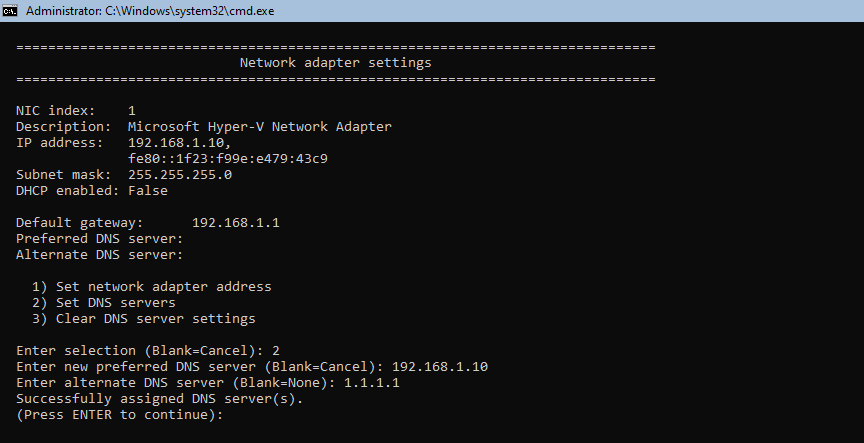
Another consideration is to quit Evaluation mode and update the server to the latest version (which explains why I set the secondary DNS entry of DC01 to 1.1.1.1 - you can configure any public DNS server out there).
Run the prequisite checks
Before performing any further step, it is recommend to run a quick check (You can download the script in there or copy below)
# Run network check
$isNetworkValidated = $false
$networkStatus = Test-NetConnection -ComputerName google.com
if ($networkStatus.PingSucceeded -eq $true) {
    Write-Host "Internet connection is validated!"
    $isNetworkValidated = $true
} else {
    Write-Host "No Internet connection! Additional Setup may require Internet connection!" -ForegroundColor Red
}

# Get Windows Activation status
$isWSActivated = $false
$wsStatus = Get-CimInstance SoftwareLicensingProduct -Filter "Name like 'Windows%'" | Where-Object { $_.PartialProductKey } | Select-Object LicenseStatus
if ($wsStatus.LicenseStatus -eq 1) {
    $isWSActivated = $true
    Write-Host "Windows is activated!"
} else {
    Write-Host "Windows is not activated!" -ForegroundColor Red
}

# Get Windows image status
$isImageGood = $false
$wsImage = Repair-WindowsImage -Online -CheckHealth
if ($wsImage.ImageHealthState -eq "Healthy") {
    Write-Host "Windows Image is in good condition!"
    $isImageGood = $true
} else {
    Write-Host "Windows Image is currupted! You should run diagnostic!" -ForegroundColor Red
}

if ($isNetworkValidated -and $isWSActivated -and $isImageGood) {
    Write-Host "Your Windows instance can be promoted to Domain Controller"
} else {
    Write-Host "Your Windows instance should not be promoted to Domain Controller" -ForegroundColor Red
}
Installing & Promoting new domain controller
I would recommend using a deployment template in case a massive deployment like deploying domain controllers for a network like this case. You can review Domain Controller template here
You can automate the installation process by using Powershell command in Windows Server:
Install-WindowsFeature -ConfigurationFilePath ".\DomainController_DeploymentConfigTemplate.xml"
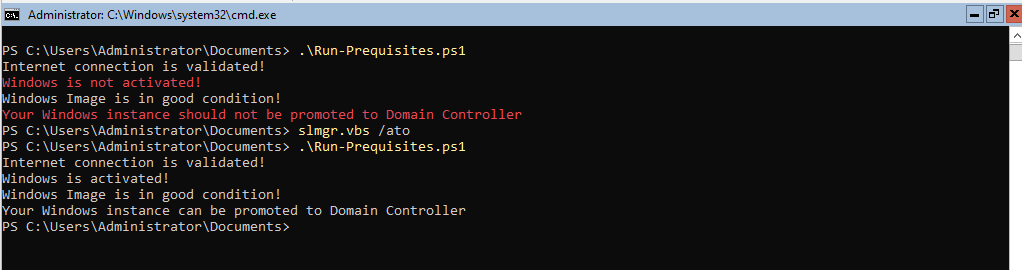
Once the check is completed and all requirements are passed, you can promote to Domain Controller (Again, you can download the script here or copy below, note that the script is only for the first domain controller in the network)
$domainName = "workshop.neko" # You can change your domain

# Check if the ADDS roles are installed
$isADDSInstalled = $false
$addsRoleStatus = Get-WindowsFeature -Name "AD-Domain-Services"
if ($addsRoleStatus.InstallState -eq "Installed") {
    Write-Host "AD DS Services are installed!"
    $isADDSInstalled = $true
} else {
    Write-Host "AD DS Services are not installed!" -ForegroundColor Red
}

# Check if the DNS roles are installed
$isDNSInstalled = $false
$dnsRoleStatus = Get-WindowsFeature -Name "DNS"
if ($dnsRoleStatus.InstallState -eq "Installed") {
    Write-Host "DNS is installed!"
    $isDNSInstalled = $true
} else {
    Write-Host "DNS is not installed!" -ForegroundColor Red
}

if (-not ($isADDSInstalled) -or -not($isDNSInstalled)) {
    Write-Host "Unable to promote to domain controller. Please review in Install-ADRoles.ps1 for configuration" -ForegroundColor Red
    exit 1
}

# Promote to AD DS FSMO
Write-Host "Promoting to AD DS FSMO"
Install-ADDSForest -DomainName "$domainName" -InstallDNS
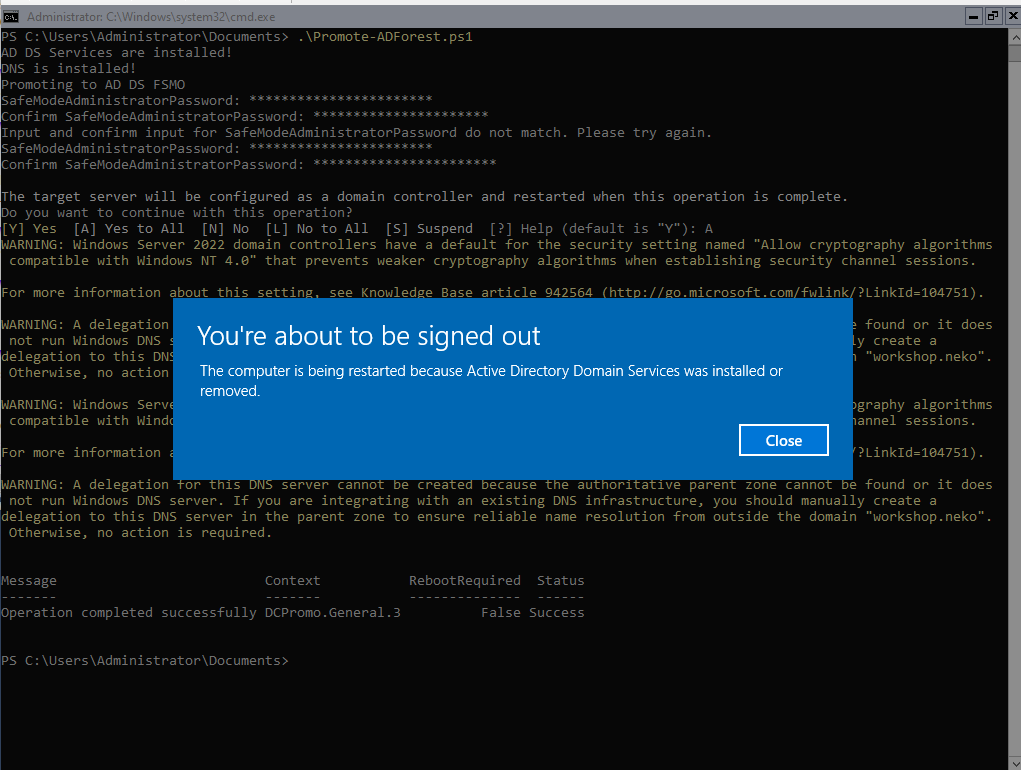
Note that after promoting, it is required for the domain controller to be restarted.
Join the secondary domain controller into the networks
Now, for the secondary domain controller (DC02), do as same as the deployment with DC01 in the roles installation. However, there are things to consider
-
The secondary domain controller DNS entries should be as same IP address as the DC01 (points to
192.168.1.10). The second entry can be public IP or loop to itself (points to192.168.1.11) -
Promoting to the domain controller for secondary domain controller is join into Active Directory, not promoting new FSMO roles. That means, you have to verify if the domain services are running, and DNS server on DC01 can response it, by running this command on DC01
nslookup workshop.nekoIf the
nslookupresponse with an IP address of DC01, the domain controller is running properly and you can join/promote the secondary domain controller.
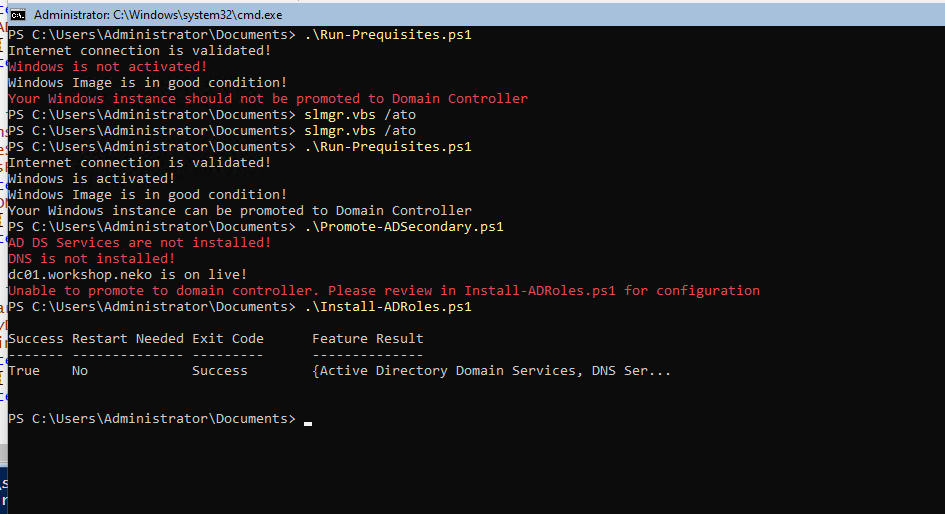
After verifing and installing all required roles and features, you can promote new domain controller into the current Active Directory instance, using this Powershell script
$localDomain = "workshop.neko"
$domainController = "dc01" + ".$localDomain"

# Check if the ADDS roles are installed
$isADDSInstalled = $false
$addsRoleStatus = Get-WindowsFeature -Name "AD-Domain-Services"
if ($addsRoleStatus.InstallState -eq "Installed") {
    Write-Host "AD DS Services are installed!"
    $isADDSInstalled = $true
} else {
    Write-Host "AD DS Services are not installed!" -ForegroundColor Red
}

# Check if the DNS roles are installed
$isDNSInstalled = $false
$dnsRoleStatus = Get-WindowsFeature -Name "DNS"
if ($dnsRoleStatus.InstallState -eq "Installed") {
    Write-Host "DNS is installed!"
    $isDNSInstalled = $true
} else {
    Write-Host "DNS is not installed!" -ForegroundColor Red
}

# Check if the primary domain controller is alive!
$isPrimaryDCCOntacted = $false
$primaryDCContact = Test-NetConnection -ComputerName $domainController
if ($primaryDCContact.PingSucceeded -eq $true) {
    Write-Host "$domainController is on live!"
} else {
    Write-Host "Unable to get status of $domainController. Please verify the network!" -ForegroundColor Red
}

if (-not ($isADDSInstalled) -or -not($isDNSInstalled) -or -not($isPrimaryDCCOntacted)) {
    Write-Host "Unable to promote to domain controller. Please review in Install-ADRoles.ps1 for configuration" -ForegroundColor Red
    exit 1
}

# Promote current server to domain controller

$HashArguments = @{
    Credential = (Get-Credential "Administrator@$localDomain")
    DomainName = "$localDomain"
    InstallDns = $true
}

Install-ADDSDomainController @HashArguments
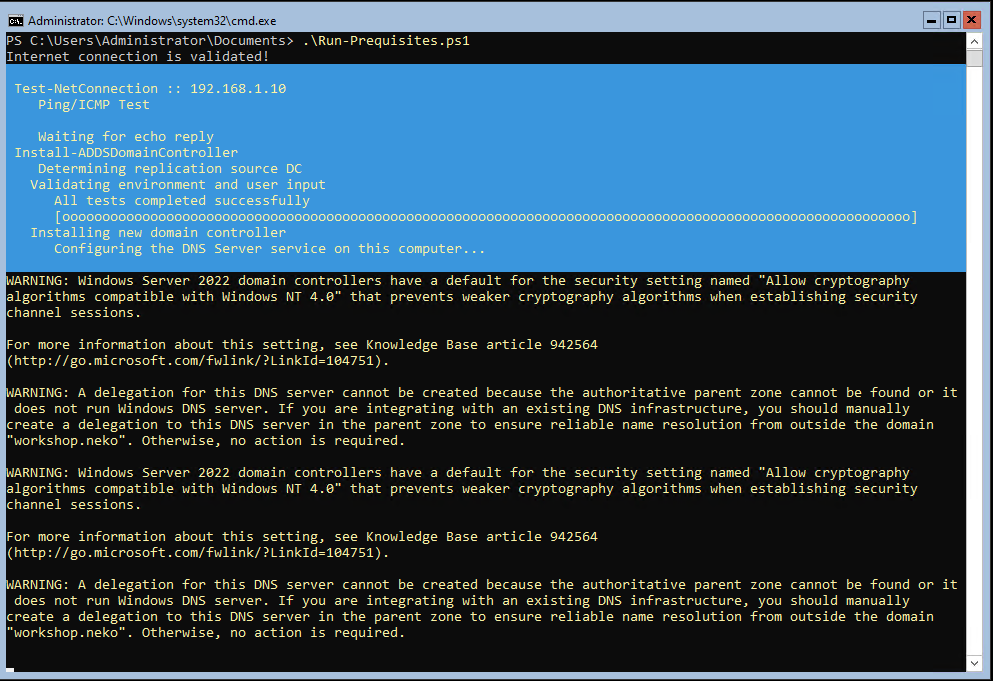
Post Active Directory Domain Controller promotion
Join clients into Active Directory & installing RSAT
A quick and easiest way to verify your Active Directory instance is join a Windows client (Windows 10 or 11). Depends on your operating system, the method may different, so you can read the documentation here.
Another consideration is after promoting, the Active Directory Domain Services and DNS may not working as expected. That's when the RSAT on client does its job.
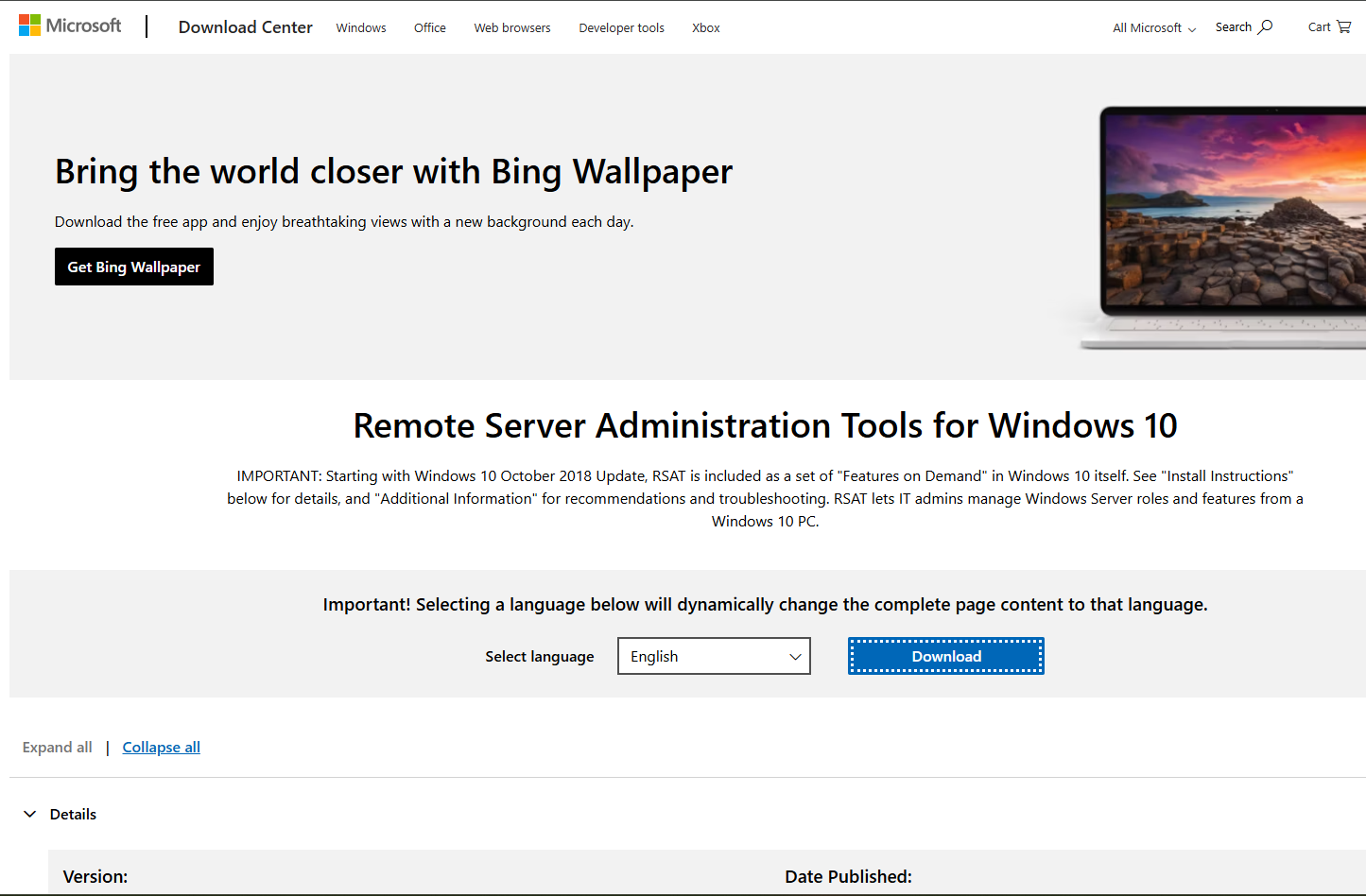
You can download RSAT from MSDN, Download Center, or on Visual Studio Subscription.
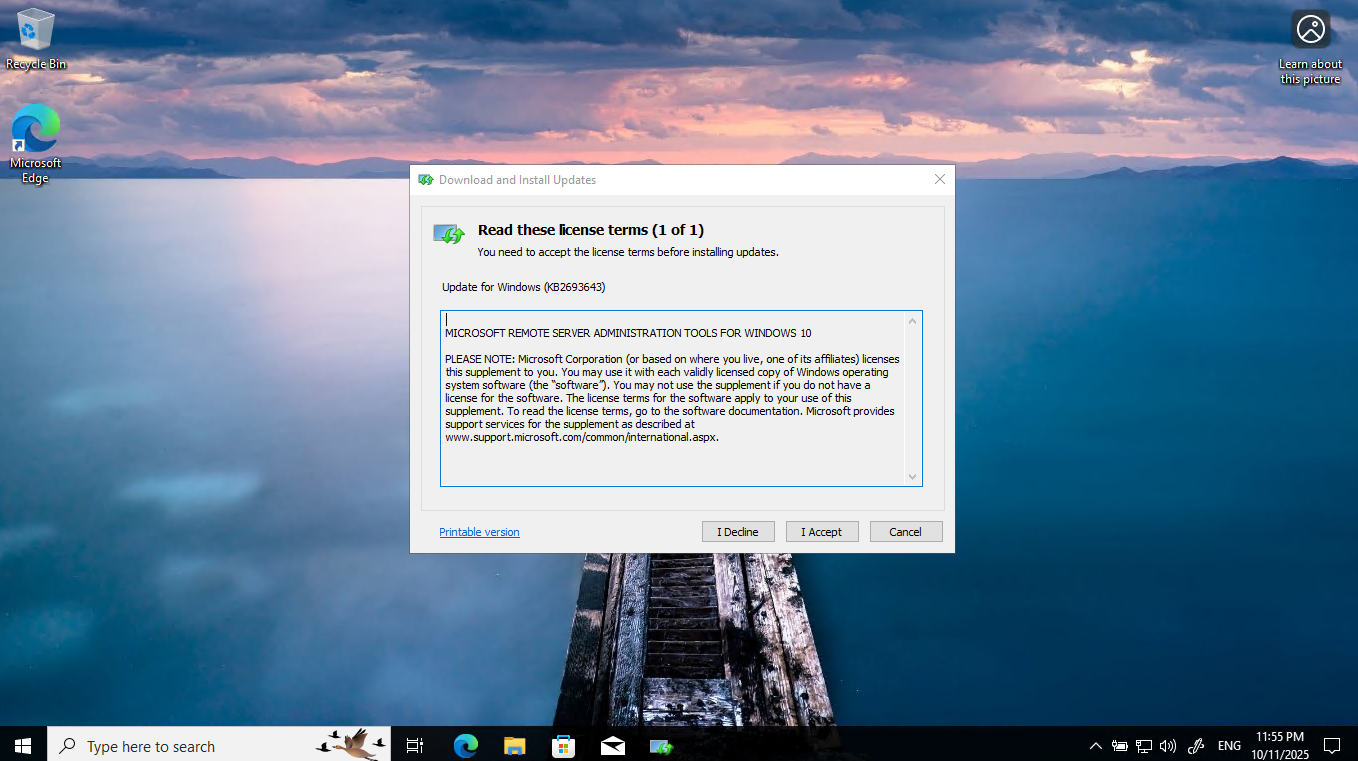
After downloading, you can use Windows Update Standalone Installer to install RSAT.
Secure your Active Directory with Security Baselines (by Microsoft)
As Microsoft claims:
A security baseline is a group of Microsoft-recommended configuration settings that explains their security implication. These settings are based on feedback from Microsoft security engineering teams, product groups, partners, and customers.
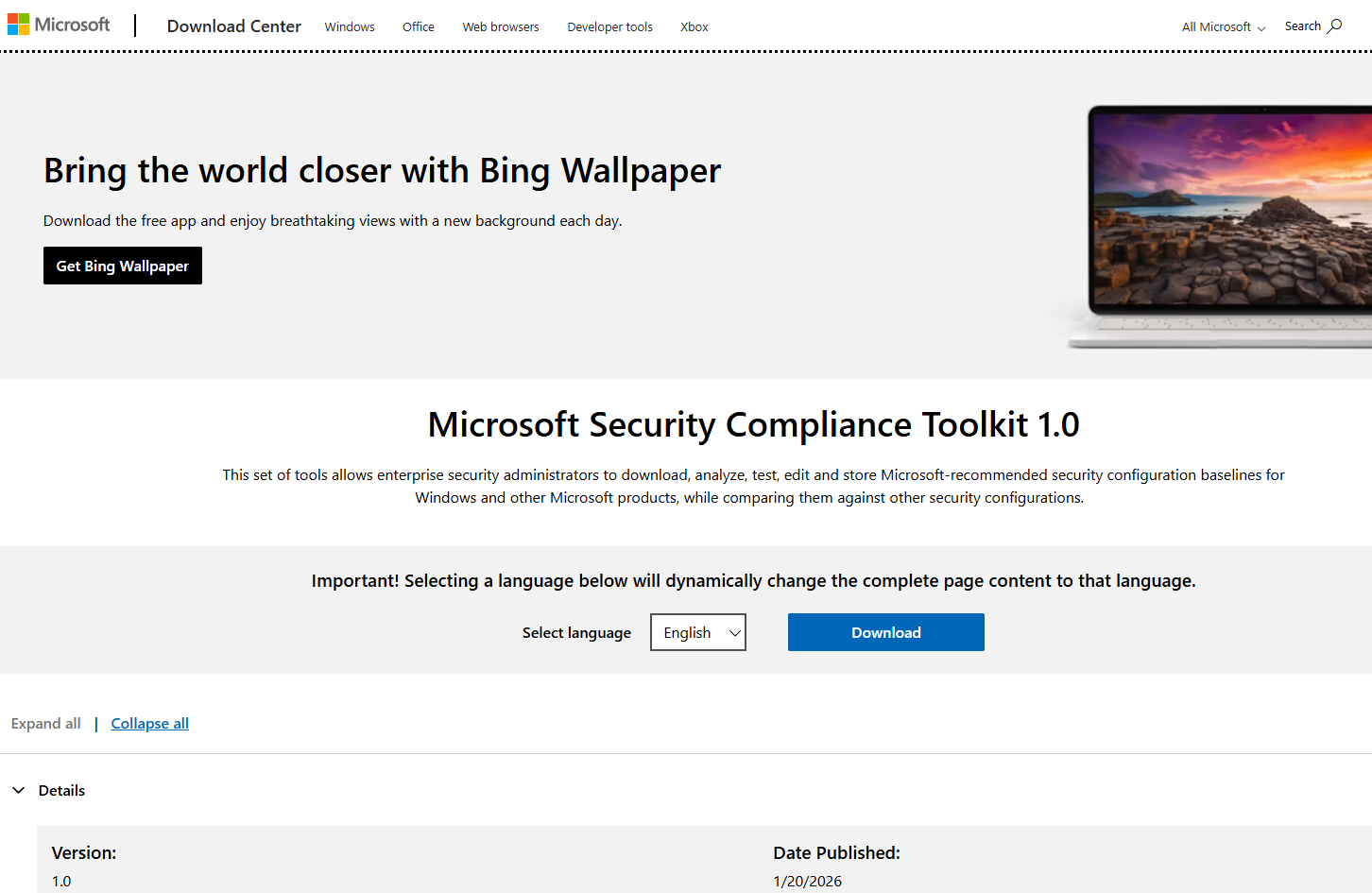
Since we are all using Windows Server 2022, it is easy to deploy the Security baselines for Windows Server 2022 from Microsoft Download Center.
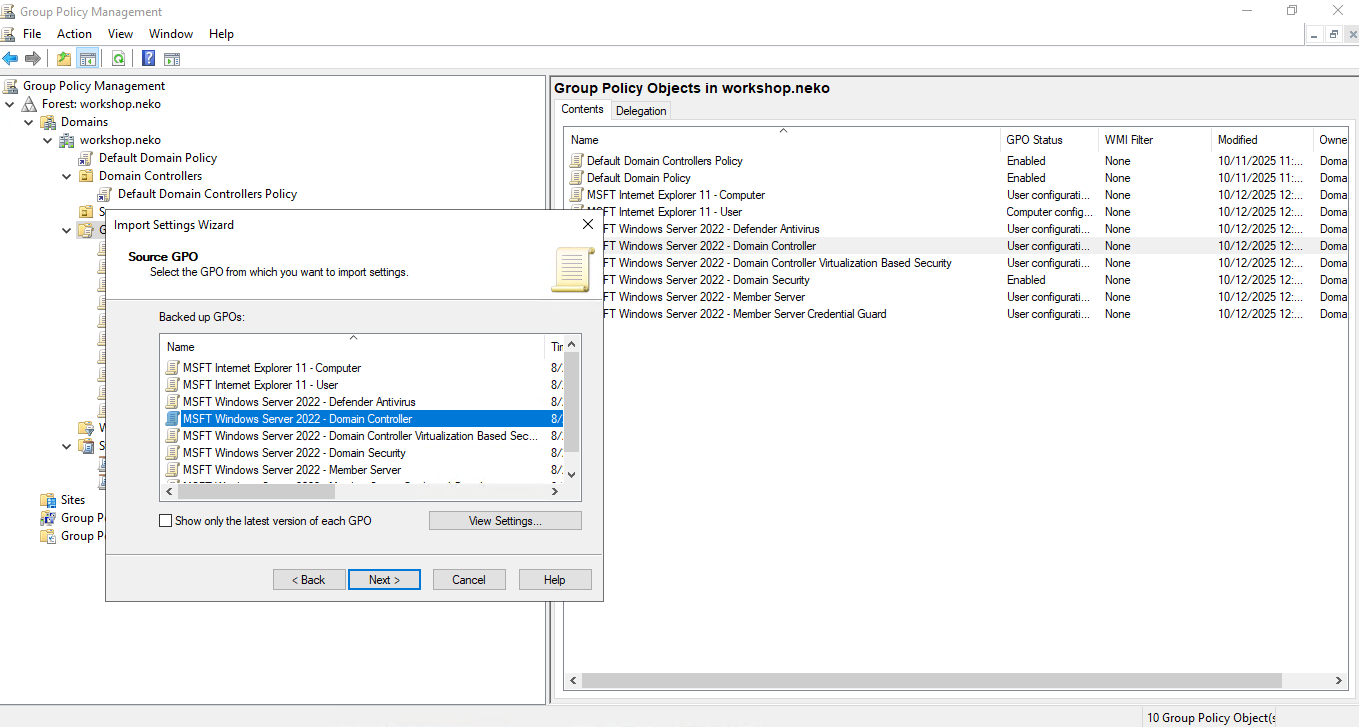
From the client computer, log into the administrator account of the Active Directory, not local administrator, to access the RSAT Group Policy Management (gpmc.msc).
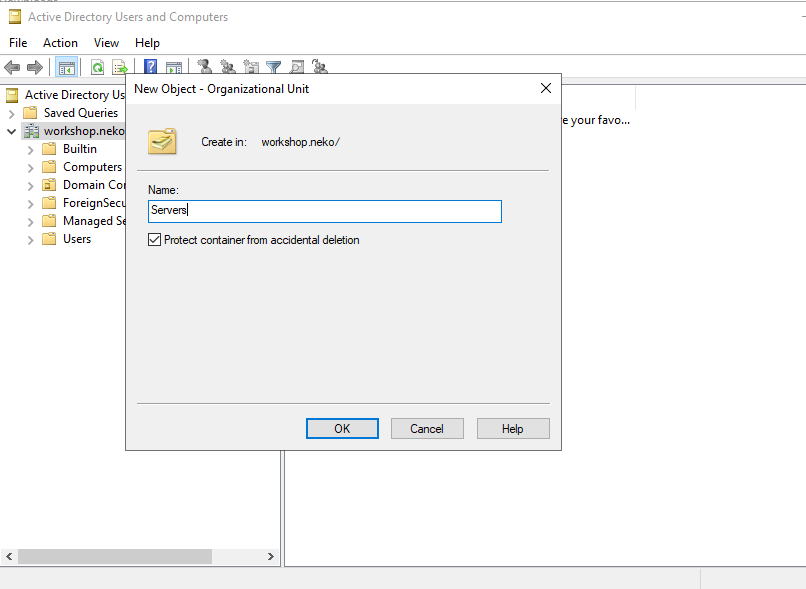
Note that you may need to configure a
Serverorganization unit in the Active Directory for the Servers, seperated from Domain Controllers and Clients
After importing policies, don't forget to apply those changes.
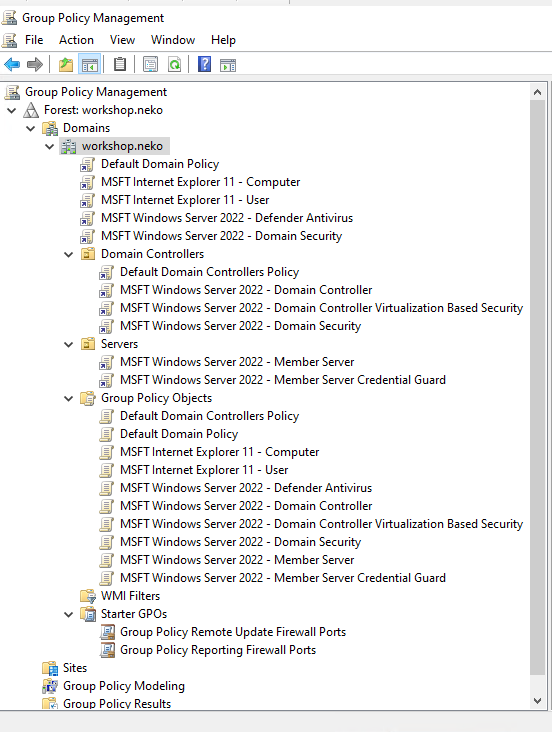
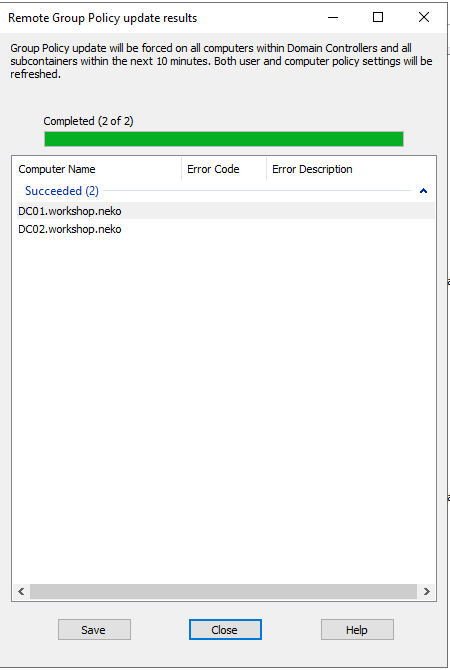
... force apply to all current domain controllers