Enable debugging mode & Start Debugging with Android Studio

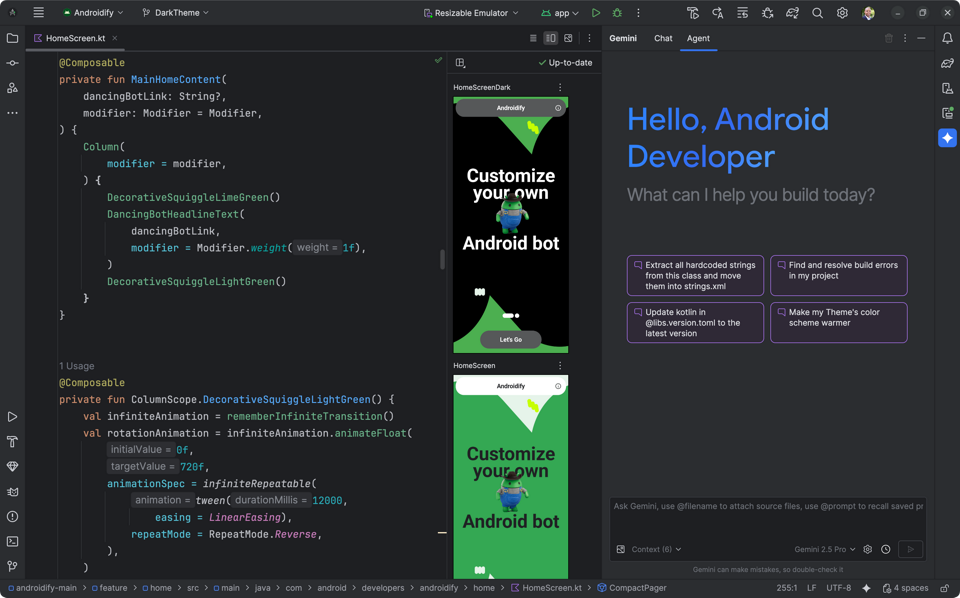
Prepare environment
- Android Studio with SDKs and toolchain
It is recommended to install development packages
- SDKs: 25 (Android 7.1.1), 27 (Android 8.1), 29 (Android 10.0), 31 (Android 12.0), 32 (Android 12L), 33 (Android 13), 34 (Android 14), 35 (Android 15), and 36 (Android 16). Note that you may need the emulator base image, and may not install Android SDK packages that not included within the APK supprted range.
- Toolchains: Android SDK Build-Tools, Android SDK Command-line Tools (latest), Android Emulator (all), Google Play libraries and services (all, except the Instant Development SDK)
- Plugins: Database Nagivator (to open sqlite)
- Java Development Kit 8 (required), 11 (optional), 17 (optional), 21 (required), and 25 (optional)
- apktool.jar with JRE 8
- A physical Android device with a physical SIM and SD card (required), and a emualted Android device (not required)
- A history-tracable comamnd line environment, such as Powershell 7 (on Windows), or zsh (on Ubuntu/Kali Linux)
Start adding the $PATH with the debugging packages
The following paths must be added to the path in order to use the application packages:
- Java Development Kit 21 (
/binfolder), to usekeytool(recommend to add into the system$PATHvariable) - Android platform tools (usually in
Android/Sdk/platform-tools) to useadb - Android Build Tools (take your pick, usually in
Android/Sdk/build-tools), to useapksigner
Installing device driver for ADB
Visit this page to install ADB device driver
Repack the Android Application package with the debuggable flag
-
Using
apktool.jarto unpack the Android application packageapktool.jar d -o <output-directory> <path-to-your-apk-file> -
Once the unpacking is done, try adding the debuggable flag, and data retaining into the
AndroidManifest.xml, under the<output-directory>path<application android:debuggable="true" android:hasFragileUserData="true" android:allowBackup="true" ...>
<!-- other application elements -->
</application> -
Recompile the APK
apktool.jar b -o <path-to-your-new-apk-file> <output-directory>
Resign the Android Application Package (with custom signing key, easy mode)
-
First, create a custom signing key
keytool -genkey -v -keystore <path-to-the-key-but-accessible> -alias alias_name -keyalg RSA -keysize <key-length> -validity <valid-days> -
Use the just-created signing key to sign the Apk
apksigner sign -ks <path-to-the-key-but-accessible> --ks-pass pass:<password-you-set-on-the-key> <path-to-your-new-apk-file>
Try installing a new Android Application Package
Using the adb, try to install the new application package.
adb install <path-to-your-new-apk-file>
Common errors
INSTALL_PARSE_FAILED_NO_CERTIFICATES
Try signing the APK and resigning it in Resign the Android Application Package
INSTALL_FAILED_MISSING_SPLIT
It usually occurs when the application package is packed with multiple applications (e.g., it is packed in an XAPK) for multiple ABIs, where the base package does not provide the proper way for Android to handle the application.
If you are the developer/tester, try installing the APK with install-multiple flags.
If you are not, you may need to download the APK from an application store, such as ApkCombo. Once you've downloaded it, try unpacking the XAPK and start enabling debugging from the beginning.
Note:
- You may need to resign both base and split packages, see the signing Android application package above
- It is recommended to check for the device ABI before proceeding any further step. See
INSTALL_FAILED_NO_MATCHING_ABISbelow for details.
INSTALL_FAILED_NO_MATCHING_ABIS
It appears when your application is not compatible with the device architecture.
Try to find a package that is compatible with your device.
Note:
- If this is a splited application package, just keep the base application package and find the matching ABI for library, it is not needed to redo all things
INSTALL_FAILED_UPDATE_INCOMPATIBLE
It occurs when your application package is already installed, and it has a different key compared to the modified application package.
Try to uninstall it with pm of adb shell, or using your own application manager inside your device.
(base) sh@DESKTOP-O9NIMTA:~$ adb shell
android:/ $ pm list packages | grep "<application-name-parts>"
android:/ $ pm uninstall <the-application-package-you-just-found>